Lakeshow 3SSB
What's new

What's new in the Lakeshow 3SSB app

Version 2.0.5: Coaches assign drills as homework and see who did them, build plays and quizzes on the phone, and send parents a weekly note. Plus sign-up links from the roster, link previews in team chat, and smoother game days.

Version 2.0.5 is in the next app update. When your phone offers the update, install it to get everything below.

Version 2.0.5

In the next app updateOctober 2026

Coaches assign drills as homework and see who did them, build plays and quizzes on the phone, and send parents a weekly note. Plus sign-up links from the roster, link previews in team chat, and smoother game days.

Drills and homework

Coaches assign, players do it at homeiPhone, Android

Coaches assign a drill as homework to the whole team or to chosen players, with a demo video, steps and a target like 3 sets of 60 seconds. Players check off each set or send a video, and coaches see who did it and reply.

How to use it
  1. Coaches: open Homework. On iPhone it is in Profile, then Development, then Plays and homework. On Android it is on Watch, under Player development.
  2. Tap New homework. Record or choose a demo video, or use a clip from your game film, then add the steps and the target.
  3. Pick once or every day, and whether players check it off or send a video. Tap Assign homework and your players get a notification.
  4. Open a homework to see who is done, watch the videos, tap Send reply, or remind everyone who has not finished.
  5. Players: open Homework, check off each set or send a video. The coach's reply lands in Coach notes, where parents see it too.
Weekly coach note for parents

Coaches send it, families read itiPhone, Android

Each week coaches get a ready-to-send note for parents with that week's plays, homework and highlights. On a weekend with no games, the reminder offers an off this weekend note instead. Nothing sends without the coach.

A club director turns this on in Profile, then Power features, then Weekly coach notes.

How to use it
  1. Directors: open Profile, tap Power features, then Weekly coach notes, and switch it on for every team or the teams you pick.
  2. Coaches: when the weekly reminder arrives, tap it to open a draft with this week's plays, homework and highlights.
  3. Change anything you like and tap Send. It posts to the team's Announcements, and families tap straight into each play, drill or reel.

Homework reminders for coaches

CoachesiPhone, Android

Coaches get a reminder when a team has no homework this week, and when players have sent homework videos that are waiting for a reply. At most one of each a week, never late at night.

Comes with the weekly coach note. A director can switch reminders off on the same screen.

How to use it
  1. Tap the reminder to open Homework for that team.
  2. Assign a drill, or reply to the videos players sent.

Playbooks: draw it, share it, quiz it

Coaches build, players learniPhone, Android

Coaches draw plays on the phone, step by step, with moves, passes and a Shoot tool, and share each play with the team. Players watch their spot animate step by step and take a Know your spot quiz. Plays on your other teams are one tap away, and every step of a play shows on one screen.

How to use it
  1. Open Playbook and tap to add a play, then draw each step. Tap Shoot, then the player with the ball, for a shot to the rim. On iPhone you can start an inbounds play from a baseline or sideline set.
  2. Save the play and share it with the team. Add a Know your spot quiz so players prove they know where to go.
  3. Coach several teams? Pick another team at the top, or tap a team under Plays on your other teams.
  4. Use All steps or One row above the steps to choose how a play shows.

Every chat shows its team

Everyone on more than one teamiPhone, Android

Each chat in the Inbox shows its team in full under the chat name, and the tile shows the age group, like 12U or 14U.

Keep streaming while you use your phone

Streamers on AndroidAndroid

On Android, the game keeps streaming when you leave the app or lock the screen. Tap the Live notification to come back to the camera.

End game is there when you need it

Coaches, directors and scorersiPhone, Android

If a camera stops sending during a game, End game stays on the game so the score locks and highlights can start. A game whose camera has stopped also ends on its own, at least half an hour after its scheduled end.

Highlights show Analyzing the game

EveryoneiPhone, Android

While a new highlight reel waits for the game to be analyzed, it shows Analyzing the game and how far along it is.

Live taps open at the right moment

EveryoneiPhone, Android, Web

Highlights and stats tapped during a live game open at the moment they happened in the game film.

Tournament schedules

EveryoneiPhone, Android, Web

When a tournament posts its games, each one goes on the right team's schedule, and each team gets one notification for the update.

Version 2.0

Out nowOctober 2026

A new design, one Inbox for every team chat, direct messages, Reddi in the app, RSVPs in one tap, and more.

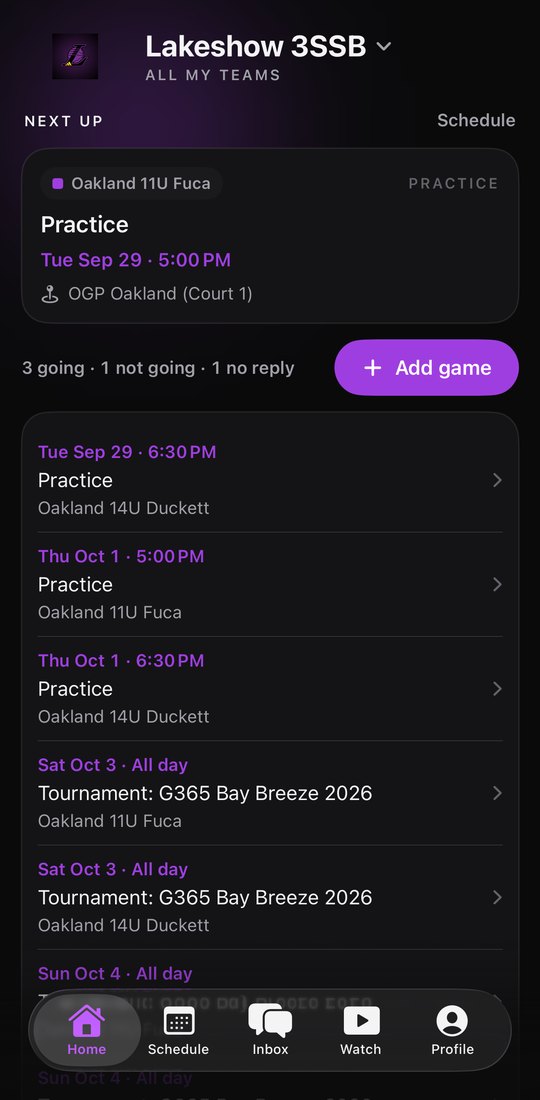
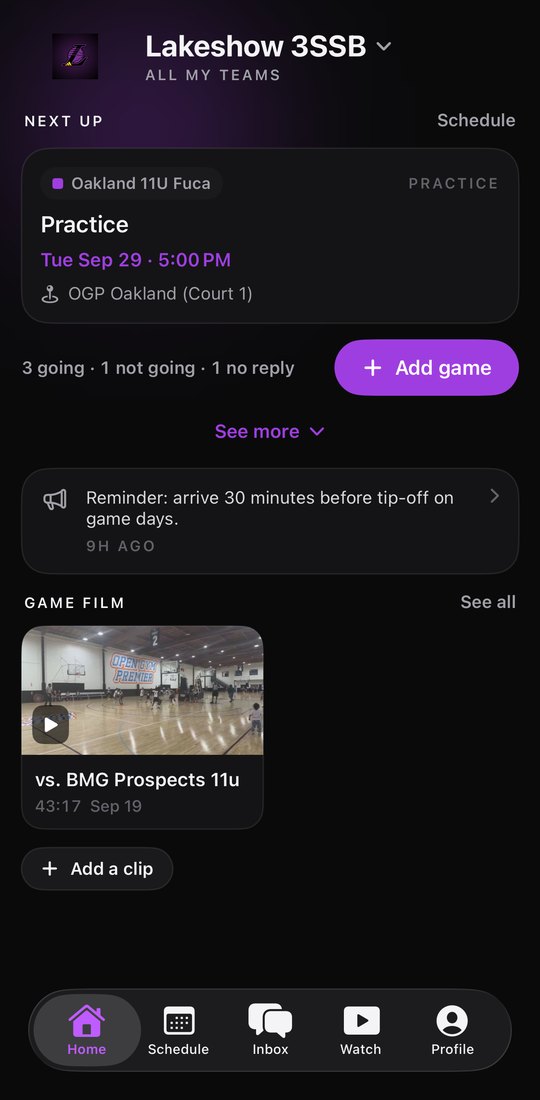
Lakeshow 3SSB Home in the 2.0 design: Oakland 11U Fuca's next practice, Tue Sep 29 at OGP Oakland (Court 1), with the RSVP count and the latest game film.

A new design

EveryoneiPhone, Android

The app is rebuilt around five tabs: Home, Schedule, Inbox, Watch and Profile. Your club's colors run through all of it.

How to use it
  1. Update the app and sign in the way you always do.
  2. Use the tab bar at the bottom: Home for what is next, Schedule for every event, Inbox for messages, Watch for games and film, Profile for your teams and settings.
  3. On more than one team? Open Profile and tap Switch team.
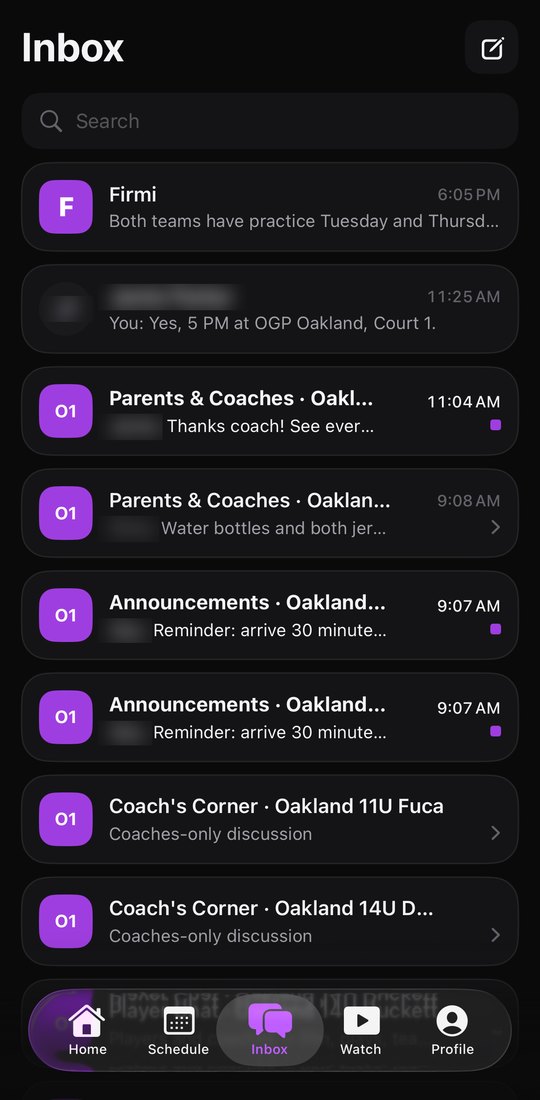
The Lakeshow 3SSB Inbox: Firmi, a direct message and one row per team chat for Oakland 11U Fuca and 14U Duckett. Names are blurred.

Inbox, one row per team chat

EveryoneiPhone, Android

Every team chat you belong to sits in one list, newest first, with unread chats marked.

How to use it
  1. Tap Inbox.
  2. Each team chat is one row. Unread chats show Unread.
  3. Tap a row to open that chat, or use Search to find one.
Lakeshow 3SSB Home with See more open: Oakland 11U Fuca and 14U Duckett practices at OGP Oakland, then the G365 Bay Breeze 2026 tournament on Oct 3.

Next Up, with See more

EveryoneiPhone, Android

Home opens on what is next for your teams, and one tap shows the events after it.

How to use it
  1. Open Home and find the Up next card.
  2. Tap See more to list the events that follow.
  3. Tap See less to fold the list back up, or tap any event for details.
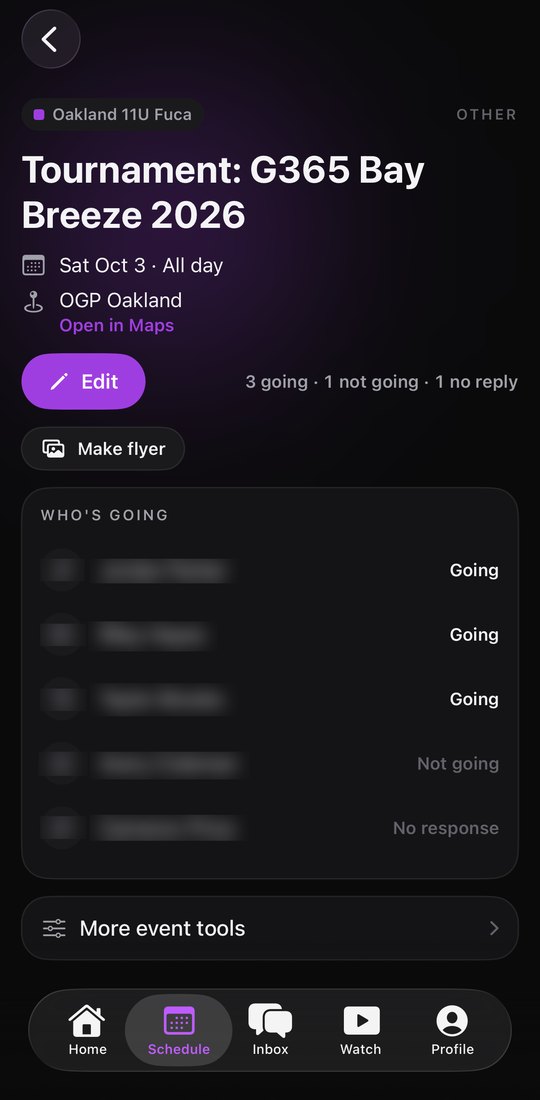
Oakland 11U Fuca at the G365 Bay Breeze 2026 tournament, Sat Oct 3 at OGP Oakland, with the RSVP count and the Who's going list. Names are blurred.

RSVP: going, not going, no reply

Families answer, coaches see the countiPhone, Android

Answer for any event in one tap. Coaches see who is going, who is not, and who has not replied yet.

How to use it
  1. Open an event from Home or Schedule.
  2. Tap Going or Not going.
  3. Coaches: the Who's going line shows the count, for example going, not going and no reply.

Tournament days that fill in with real games

EveryoneiPhone, Android

A tournament shows up on the schedule as an all-day card as soon as it is booked. When the bracket is posted, the real games with times and courts take its place.

How to use it
  1. Open Schedule and look for the All day tournament card.
  2. When the tournament posts its schedule, your team's real games with times and courts replace the card on their own, so nothing shows up twice.
  3. Tap a game for its time and court.
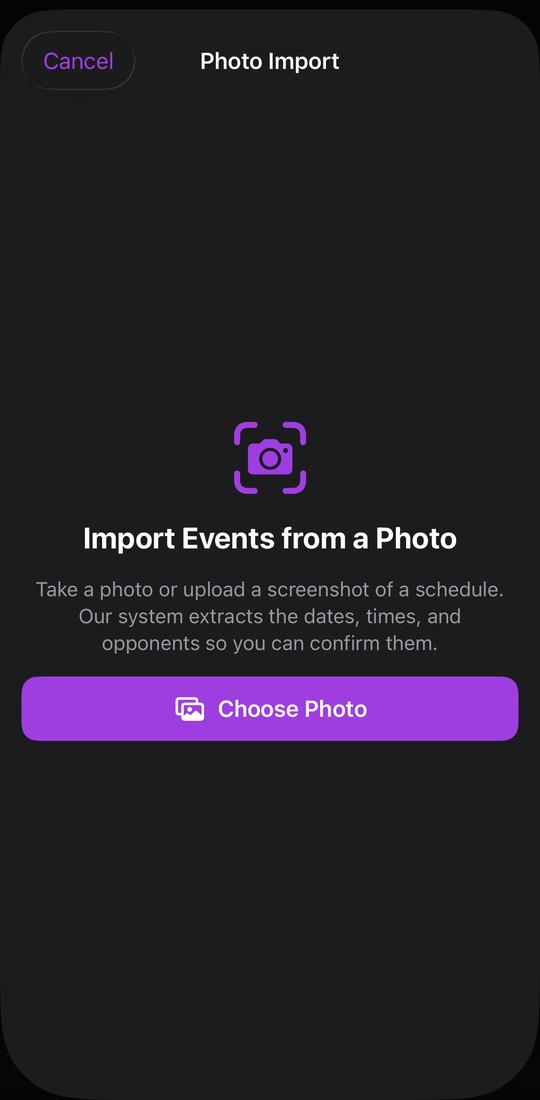
Photo import in the Lakeshow 3SSB app: take or choose a photo of a schedule.

Build the schedule from a photo

Coaches and directorsiPhone, Android, Web

Take a photo or a screenshot of a schedule, like a tournament bracket or a gym sheet, and the dates, times and opponents come in for you to check before they are added.

How to use it
  1. iPhone: open Schedule, tap Add, then Photo import. Android: open Profile, tap Power features, then Import schedule from a photo. On the web dashboard: Schedule, then Photo Import.
  2. Take a photo or choose a screenshot of the schedule, then tap Extract Events.
  3. Check the games and practices it found, fix anything that needs it, and tap Import.

Delete your account

EveryoneiPhone, Android

You can ask for your account to be deleted from inside the app.

How to use it
  1. Open Profile.
  2. iPhone: tap Settings and account, then Delete Account. Android: tap Settings, then Delete account.
  3. Confirm, and we take it from there.
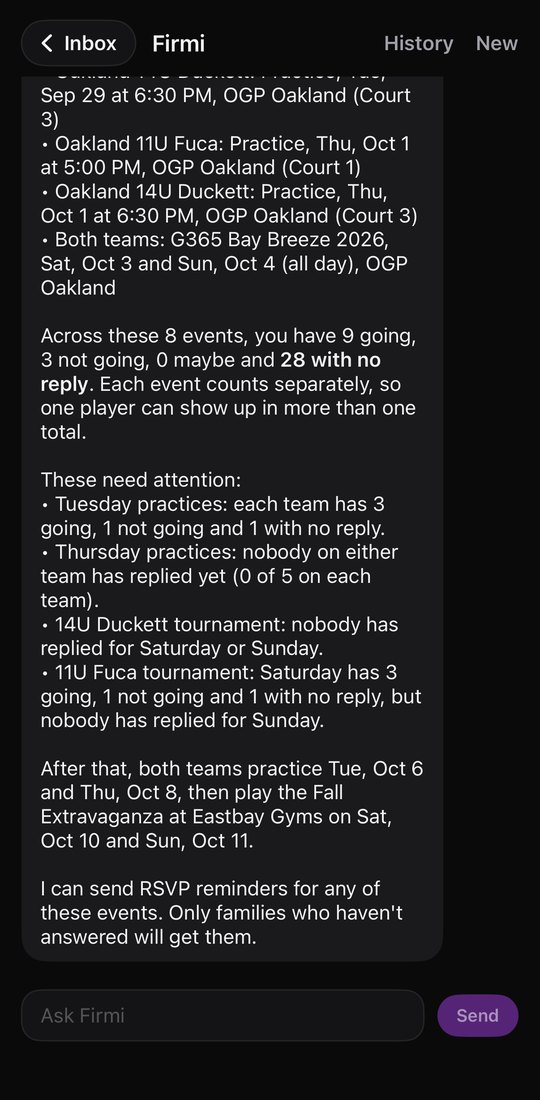
Firmi in the Lakeshow 3SSB app listing this week's Oakland 11U Fuca and 14U Duckett practices at OGP Oakland, the G365 Bay Breeze 2026 tournament, and the RSVPs still missing.

Reddi, right in the app

Everyone asks; coaches and directors approve changesiPhone, Android

Ask Reddi about your schedule, your games and your film in plain words. When a coach asks for a change, Reddi shows a card to confirm before anything goes out. Before version 2.0.6 the app called Reddi by its earlier name, Firmi.

How to use it
  1. Open Inbox and tap Reddi.
  2. Type a question in Ask Reddi, like when is our next game or how are RSVPs for Saturday.
  3. Coaches and directors: when Reddi proposes a change, such as moving a practice or sending an RSVP reminder, it shows a Needs your OK card. Tap Send to confirm or Cancel to drop it.
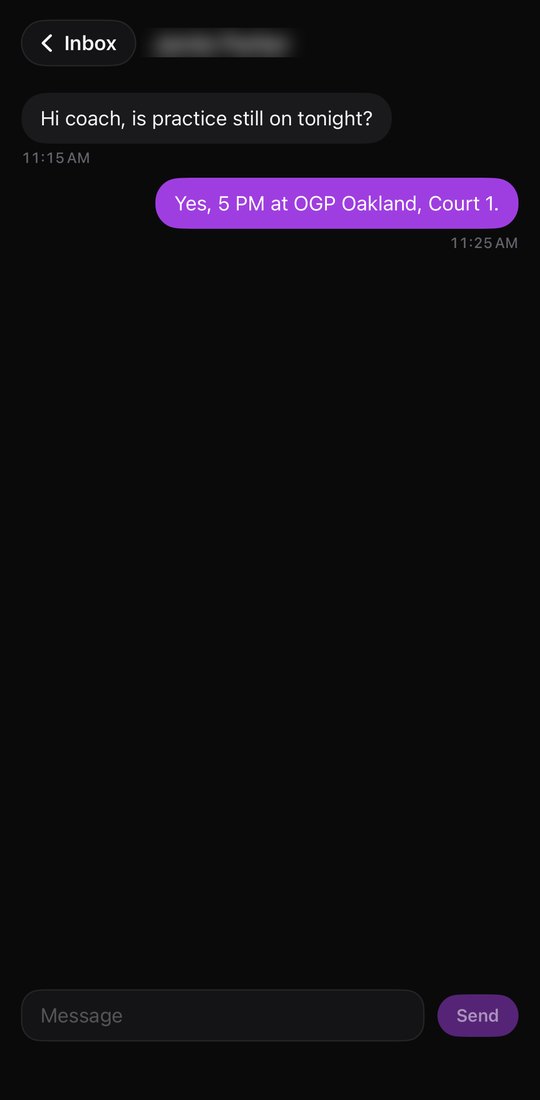
A direct message to the coach in the Lakeshow 3SSB app: practice is at 5 PM at OGP Oakland, Court 1. The name is blurred.

Direct messages

Families, coaches and directorsiPhone, Android

Message one person privately: another family on your team, your team's coach, or club staff.

How to use it
  1. Open Inbox and tap New message.
  2. Pick a person, or use Search people.
  3. Type your message and tap Send.
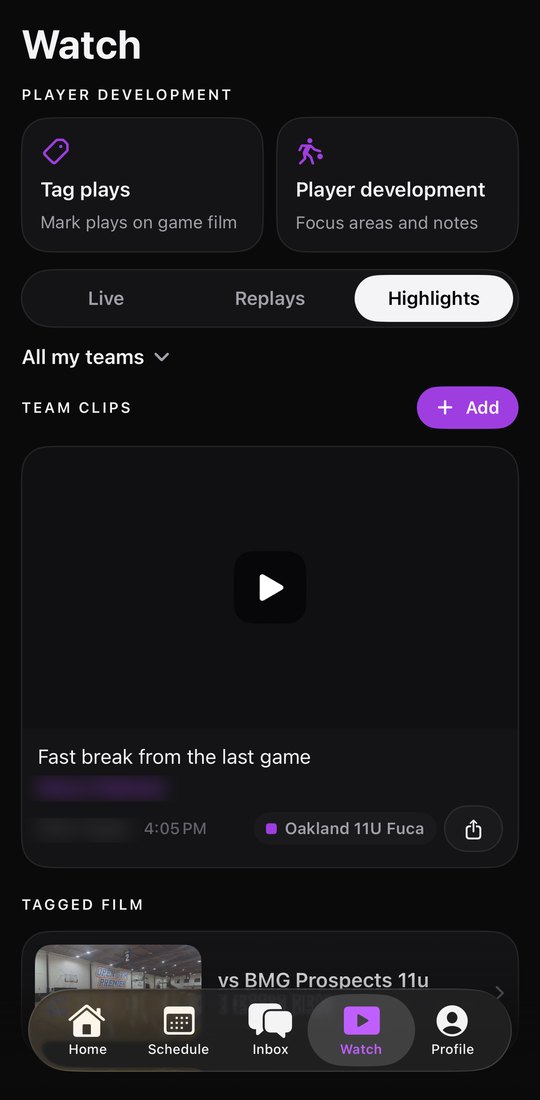
Lakeshow 3SSB Watch, Highlights: an Oakland 11U Fuca team clip and tagged game film vs BMG Prospects 11u. Names are blurred.

Team clips

Team membersiPhone, Android

Share photos and short videos with your team, and tag the players in them.

How to use it
  1. Open Watch and tap Team clips.
  2. Tap Add a clip and choose a photo or video.
  3. Add a caption, tap Tag players to tag who is in it, then tap Add.
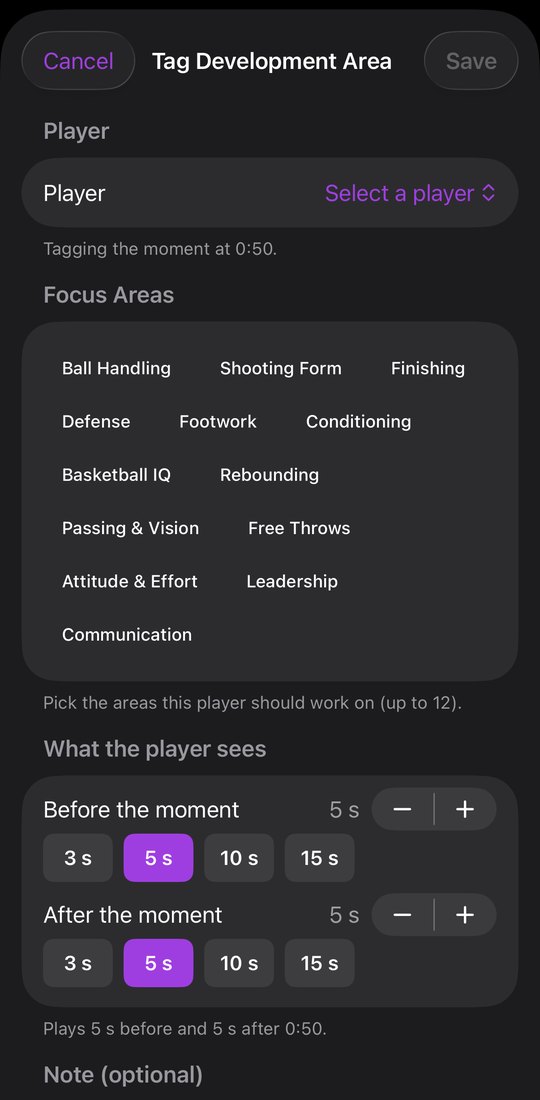
Tagging a moment on Lakeshow 3SSB game film vs BMG Prospects, with 5 seconds before and after.

Tag plays with timing, speed control and undo

Coaches and directorsiPhone, Android

Tag a moment in game film and choose how much to keep before and after it. Move through the game on one scrubber, review from half speed to double speed, and clear a tag with a swipe.

How to use it
  1. Open a game's film and tag a play.
  2. Set Before the moment and After the moment (5 seconds each to start).
  3. Tap the speed button to move between 0.5x, 1x, 1.5x and 2x.
  4. Swipe a tag you made to delete it. Tap Undo if you change your mind.
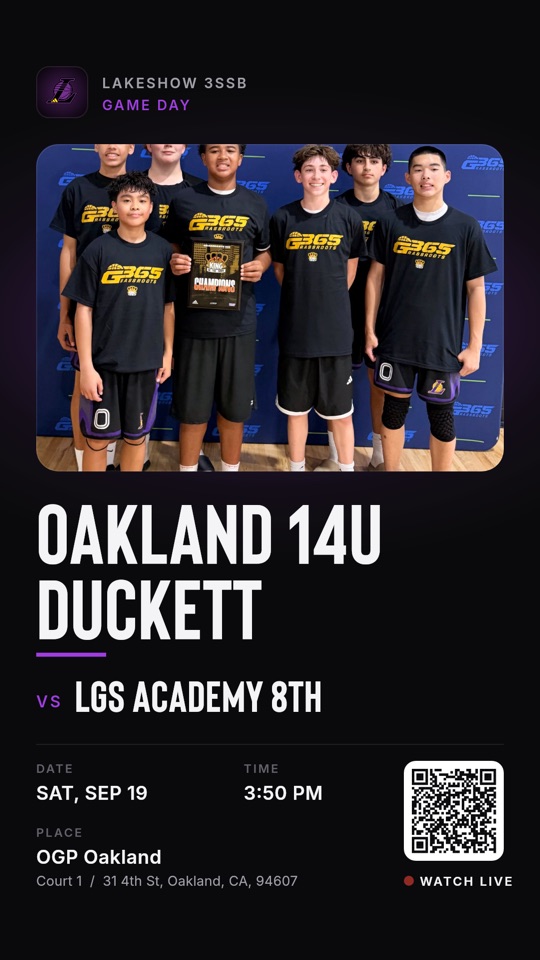
A Lakeshow 3SSB game flyer: Oakland 14U Duckett vs LGS Academy 8th at OGP Oakland, in the club's colors.

Game flyers

Coaches and directorsiPhone, Android

Turn any game or tournament into a flyer in your club's colors, ready for a story or a post.

How to use it
  1. Open a game or tournament event.
  2. Tap Make flyer.
  3. Pick Story video, Story image or Square image, then share it.

Tournament win celebration

Directors post it, the whole team sees itiPhone, Android

When a team wins a tournament, the director can put a celebration on that team's Home for everyone to see.

How to use it
  1. Directors: open the tournament event and tap Celebrate result.
  2. Pick Champions, Finalists or Division Winners, and add the division and a team clip if you like.
  3. The team sees it on Home for seven days. Take down removes it any time.
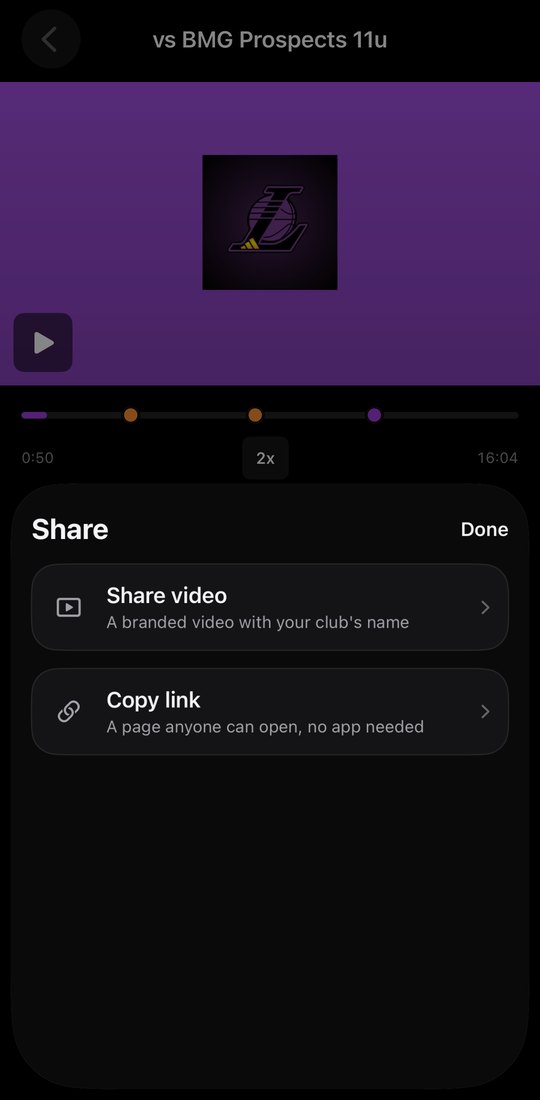
Sharing a tagged play from Lakeshow 3SSB game film vs BMG Prospects: Share video or Copy link.

Share branded highlights

Team membersiPhone, Android

Share a team clip or a tagged play as a video in your club's colors, or as a link.

How to use it
  1. Open a team clip or a tagged play and tap Share.
  2. Choose Share video (vertical or wide) or Copy link.
  3. Changed your mind? Turn off link stops the link from working.
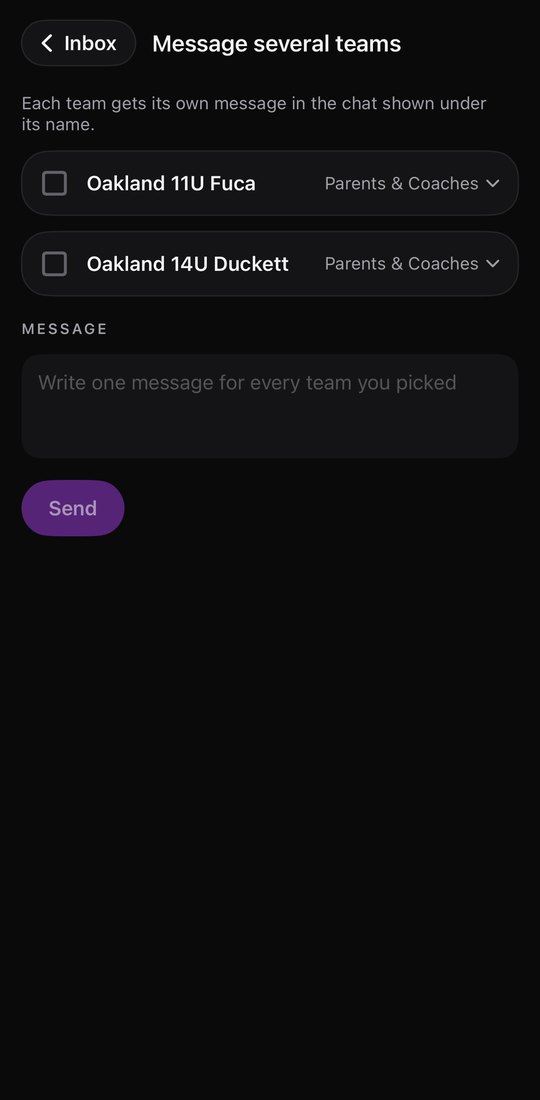
Message several teams in the Lakeshow 3SSB app: pick Oakland 11U Fuca and Oakland 14U Duckett and each chat, then write one message.

Message several teams at once

Coaches and directorsiPhone, Android

Coach more than one team? Write one message and send it to several team chats in one go. Each team gets its own copy in its own chat.

How to use it
  1. Open Inbox, start a new message and choose Message several teams.
  2. Tick each team you want, and pick which chat it posts to for each team.
  3. Write the message once and tap Send. You see the result for each team.

You asked, we built it

Ideas from Lakeshow 3SSB families and coaches, and what we did with each one.

You asked

Can the card processing fee be passed on to families at checkout, the way our old platform did it?

We built

A club setting adds the processing fee at checkout, so the club receives the full program price.

Live now
You asked

Can families pay by bank transfer?

We built

Checkout offers bank transfer (ACH) at a flat 1.5%.

Live now
You asked

We need roster exports with the columns we choose: sizes, parent info and form answers.

We built

Roster CSV export follows the program you are viewing, has a paid-only option for check-in lists, and can add any registration question as a column.

Live now
You asked

Can we charge one family a custom amount, like for a jersey?

We built

Directors send a family a payment link for any amount, right from the dashboard.

Live now
You asked

Can a player move from one program to another?

We built

Directors move a registrant between programs in one step, and can undo it.

Live now
You asked

Can both parents have access to the same child?

We built

A family can invite a second guardian by email to share the child's profile.

Live now
You asked

If a family leaves mid-season, can we stop their remaining payments?

We built

Directors can cancel a family's remaining installments and keep what was already paid.

Live now
You asked

Can a discount code work together with a payment plan?

We built

Discount codes are tied to the programs you choose, and payment plans run on the discounted price.

Live now
You asked

RSVPs should count players, and parents want to see who is going.

We built

The headcount counts players only, and parents, coaches and directors all see who is going.

Live now
You asked

Can the schedule show up in our phone calendars?

We built

Every team has a calendar you can subscribe to in Google or Apple Calendar, plus Add to Calendar in the app.

Live now
You asked

Help us keep gyms tidy: courts under each gym, and a way to clear many events at once.

We built

A Locations manager to rename, merge and set addresses, court choices under each gym, and bulk delete or cancel on the schedule.

Live now
You asked

I coach three teams. Can I send one message to all of them at once?

We built

Coaches and directors pick several team chats, write once and send. Each team gets its own message, with a result shown for each team.

In version 2.0
You asked

Put tournament weekends on the calendar as placeholders, so the real games do not double up the schedule.

We built

All-day tournament cards go on the schedule as soon as a tournament is booked, and the real games replace them automatically. In 2.0, matching cards on the same day show as one card listing the teams.

Live now
You asked

Tell families when a game time changes.

We built

Families get an Event updated notification whenever a time or place changes.

Live now
You asked

On several teams, a chat notification should open that exact conversation.

We built

Every chat notification opens the exact conversation it is about, for people on one team or many.

In version 2.0
You asked

Next Up should always show events in the same order.

We built

Next Up always lists events in time order, and See more shows what comes after.

In version 2.0
You asked

Photos in chat should show as photos.

We built

Photos show inline as thumbnails in chats and in the Inbox preview.

In version 2.0
You asked

Show going, not going and no reply at a glance.

We built

Home and the event page show going, not going and no reply as player counts.

In version 2.0
You asked

Make film easy to find for any team.

We built

One team switcher for everything, and team clips appear in Highlights.

In version 2.0
You asked

A shared registration link should show the program's own graphic.

We built

Link previews show the club's own graphic for each program.

Live now
You asked

Can families check out several kids at once?

We built

Every child in the cart is paid for in one checkout.

Live now
You asked

Long chat messages and copying text.

We built

Long messages wrap as you type, and press and hold copies a message.

Live now
You asked

Who reacted to a message?

We built

Tap a reaction to see who sent it.

Live now
You asked

Recurring practices should land on the days we pick.

We built

Practices repeat on the weekdays you choose, with a standard end date picker.

Live now
You asked

Show which team each event is for.

We built

Every event on the schedule carries a team chip.

Live now
You asked

Filter registrations by answers, several at a time.

We built

Pick several answers at once and show them as columns.

Live now
You asked

Group the schedule by program and let us edit opponents.

We built

The team picker is grouped by program, and every game has an editable opponent.

Live now
You asked

Tidy up the invite list.

We built

The invite team picker is grouped by season, finished seasons are hidden, and it starts on a current team.

Live now
You asked

Registration forms: add emergency contact details and put the refund policy last.

We built

Emergency contact name and relationship are fields, directors can order waivers, and every signed copy lands on one receipt.

Live now
You asked

Parents should see their own family's details and the schedule, and nothing meant for staff.

We built

Parents see their own family on rosters, and the schedule shows them the events without staff controls.

Live now
You asked

Registration should stay open through the whole close date.

We built

A close date now runs to the end of that day.

Live now
You asked

Can we keep score after games?

We built

Keep Score lives on the game screen in the app.

Live now
You asked

Typing a birthday beats scrolling through years.

We built

Parents type the date of birth straight in when they register.

Live now
You asked

Give players drills to work on at home, and show us who did them.

We built

Coaches assign a drill as homework with a demo video and steps. Players check off each set or send a video, and coaches see who did it and reply.

In version 2.0.5
You asked

Keep every play we save in one place, show all the steps at once, and add a shot.

We built

Plays on all your teams are one tap away, every step shows on one screen, and the editor has a Shoot tool.

In version 2.0.5
You asked

A short weekly note from the coach so parents know what to ask their kid about.

We built

Coaches get a ready-to-send weekly note with that week's plays, homework and highlights. Nothing sends without the coach.

In version 2.0.5
You asked

In the Inbox, show which team each chat is for.

We built

Every chat shows its team in full, and the tile shows the age group.

In version 2.0.5
You asked

Let families connect themselves to their child on the roster.

We built

Parents pick their child from the team roster when they join, and directors approve anything unclear.

Coming in a later update

Get the beta

Want new things before everyone else? Join the Lakeshow 3SSB beta. Sign in with the same email and password; your teams, schedule and messages come with you.

iPhone

  1. Install TestFlight from the App Store. It is Apple's free app for beta versions.
  2. On your iPhone, tap Join the Lakeshow 3SSB beta.
  3. Tap Accept, then Install. Open the app and sign in with your usual email and password.
Join the iPhone beta

If it says the beta is not accepting testers right now, try again later today.

Android

  1. Ask your club director or coach for an Android beta invite.
  2. Once you are invited, update the app from Google Play and sign in as usual.